
How to Apply for Annapurna Bhandar Scheme 2026: Complete Application Guide

Follow our clear online registration instructions to create your official account, complete the 12 pages of the form correctly, and upload required verification files.

Indian woman working on laptop submitting government registration form

Before You Apply

Applying for the Annapurna Bhandar Scheme 2026 requires careful preparation of personal and banking details. The government processes applications through a digital verification network, making it essential to submit matching information to avoid delays. Review the general guidelines on our welfare homepage before starting.

Check Your Eligibility

Verify that you meet all age, residency, and household income criteria before starting. You can use our eligibility checker calculator to assess your qualification status instantly. Exclusions apply to government employees and high-income earners.

If you receive other public service benefits or pensions, verify if they exclude you. Check eligibility guidelines to prevent automatic holds during central IT database reviews.

Gather Required Documents

Ensure you have scanned copies of your Aadhaar Card, Voter ID, and bank passbook. The documents must be clear and within specified file size limits. Refer to our required documents list for detailed file specifications.

Keep your caste certificates and recent income statements issued by block officers ready. Clear scans prevent reviewers from flagging blurry documents during verification phases.

Prepare Your Information

Write down character strings exactly as they appear in your bank ledger and Aadhaar card. Mismatched spellings or middle names are common reasons for review delays. Check your records carefully before portal submission.

Confirm that character strings are identical across voter cards and bank statements. Grammatical variations or spacing differences will trigger automated name-matching rejections.

Choose Best Time to Apply

Submit your form during low-traffic hours (early morning or late evening) to avoid peak server loads on the state registry portal. Ensure the mobile number linked to your Aadhaar card is active and near you during registration for OTPs.

Avoid submitting applications during peak afternoon windows. Off-peak registration ensures faster page loads, secure document uploads, and rapid OTP delivery via UIDAI gateways.

Step-by-Step Application Process

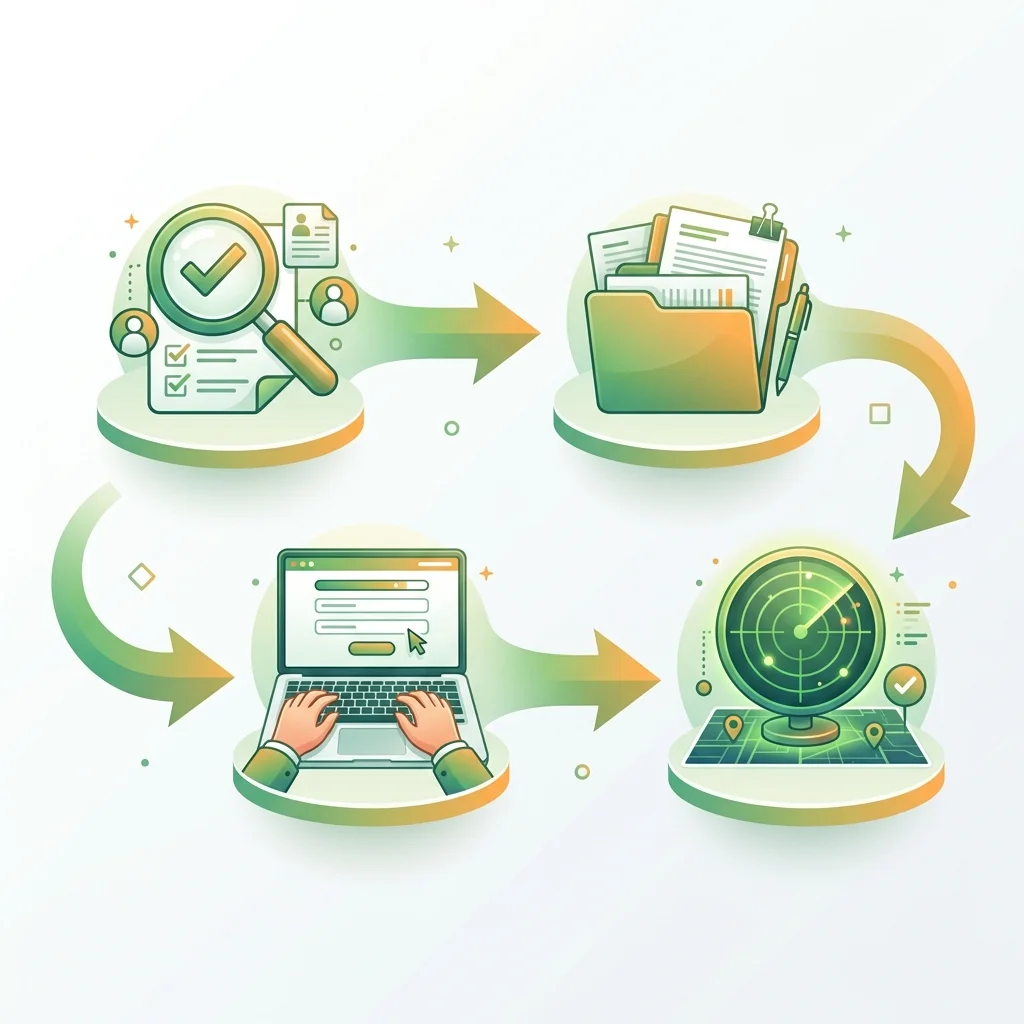
The online application involves a 7-step process on the official social registry portal. Follow these instructions to complete your registration.

  • 1

    Step 1: Visit Official Portal

    Navigate to the government social security registry portal at socialregistry.wb.gov.in. Make sure you use a secure web browser and check the URL carefully before entering any personal details. Avoid third-party links that request processing fees.

    The state portal has been optimized for mobile and desktop screens. Volunteers and helpdesks assist with document uploads and validation queries, helping to ensure that language or technological barriers do not block access.

    Verify that the browser displays the security padlock icon before logging in. Avoid public Wi-Fi networks when submitting banking records to protect your profile details against data risks.

  • 2

    Step 2: Create Your Account

    Input your active 10-digit mobile number on the landing interface. Click "Generate OTP" to receive a 6-digit confirmation password. Input this key into the validation bar to gain account workspace access. The password is valid for 10 minutes.

    If you do not receive the OTP within 2 minutes, check your mobile network connection or click "Resend OTP". Ensure your phone is not set to "Do Not Disturb" (DND) mode, which can block system alerts.

    The mobile number registered on the portal will be used for all future transaction logs and status updates. Ensure the SIM card is active and registered in your name to maintain direct communication path safety.

  • 3

    Step 3: Login & Start Application

    Once authenticated in your dashboard, click on the "Annapurna Bhandar Yojana 2026 Application" link. If you are migrating an older profile, enter your previous Lakshmir Bhandar card number to load your details automatically. This saves time and ensures matching records.

    The data migration process uses active social registry records. If the system flags a routing error or mismatched detail, a warning notification will explain the correction steps needed to complete your file migration.

    Transitioning beneficiaries must confirm that the pre-loaded bank details match active records. If you recently changed banks, select manual override to submit current bank passbook scans.

  • 4

    Step 4: Fill Form (12 Pages)

    The form is divided into sections: Personal details (Name, Husband's/Father's name), Caste Category, Residency address, Contact Details, Bank Account IFSC/Number, and Aadhaar card details. Verify matching character strings against your bank passbook.

    Ensure all fields are completed accurately. Mismatched details in spelling or middle names are common reasons for review delays. Check your records carefully before proceeding to the next page.

    Each page saves draft records automatically when you click next. Take your time to review address strings, ensuring ward names and development blocks match municipal address proofs exactly.

  • 5

    Step 5: Upload Documents

    Upload your scanned passport photo, Aadhaar card copies, bank book front ledger, Voter ID, and caste certificates (if applicable). Use our guidelines to compress files if they exceed 500 KB. Blurry scans will trigger verification holds.

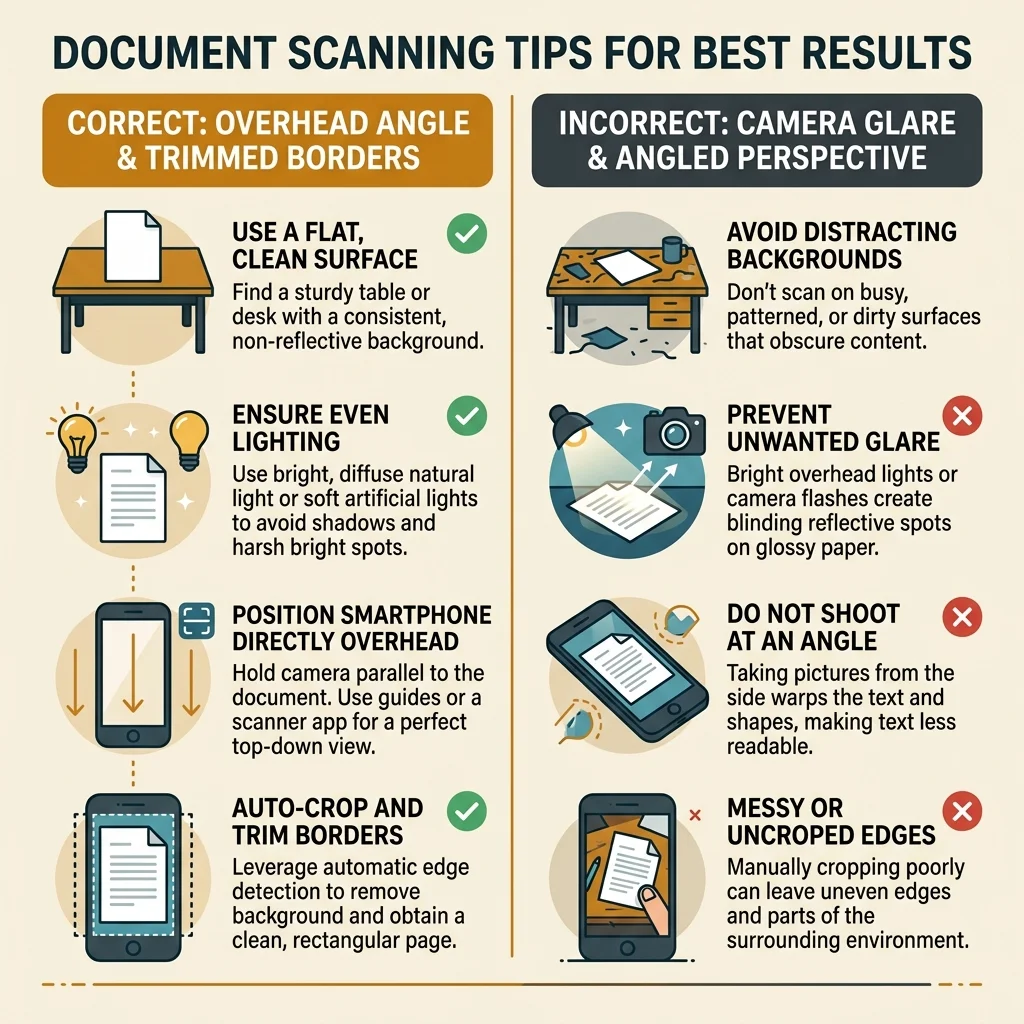
    Each file must be saved in PDF, JPEG, or JPG format. Use a mobile scanner app or a flatbed scanner to capture documents clearly, ensuring all text is legible and borders are trimmed.

    Check that passbook uploads display branch details and account numbers clearly. Crop out excess background details to focus the file entirely on the certificate details.

  • 6

    Step 6: Verify Mobile Number

    The portal will send a second OTP to verify your Aadhaar linkage. Enter this code to sign the biometric consent form digitally, allowing the state welfare cell to verify your bank credentials with the NPCI bank mapper database.

    This verification step acts as a primary compliance check. Transactions are managed through the NPCI grid, which links the applicant's Aadhaar details to active banking records, ensuring secure direct payouts.

    Ensure your Aadhaar card biometric lock is temporarily disabled before verifying. Locks block UIDAI portal checks, causing the application verification to fail during BDO audits.

  • 7

    Step 7: Submit Application

    Submit your application. Once successfully parsed by the server nodes, you will see a confirmation screen. Note down your unique Application ID (starts with AB-2026- followed by 6 random numbers) for status queries.

    An SMS confirmation will also be sent to your registered mobile number. Keep this reference safe for status checks as your application moves through block and district level reviews. Track details on our status check tool.

    Print a copy of the final submission page. If local block development offices request physical documents for audit reviews, this print receipt serves as proof of online registration.

Form Fill-Up Details

The online application form is organized into 12 pages, designed to gather demographic and financial profiles for registry verification. Prepared details prevent portal errors.

Pages 1-3: Personal Profiles

Input your legal name matching Aadhaar, caste categorization details, spouse details, and family card numbers. Select appropriate SC/ST categories if applicable to align with state social security logs.

Verify that your husband's name and identity cards are declared accurately. The system cross-references these details against exclusion registries to prevent duplicate family registrations.

Any error in your name spelling will cause transition checks to fail. Take your time to review characters against your voter card details before saving.

Pages 4-6: Residency & Address

Complete address mapping, village/ward details, block selections, and active mobile numbers. Local BDO offices use this address data to allocate verification files to block officers.

Select your rural block or urban municipality cell carefully from drop-down menus. Outdated address inputs redirect your file to wrong districts, delaying approvals.

Double check pin codes and district selections. Wrong locations direct your file to incorrect administrative bins, causing delays.

Pages 7-9: Banking & Identity

Input Aadhaar numbers, single bank account details, branch codes, and IFSC identifiers. Double-check IFSC codes for merged bank branches. Joint accounts are not accepted. Refer to scheme details.

Check bank account numbers twice to avoid routing issues. Mismatched digits route payments to wrong bank ledgers, causing direct transfer failures.

If your branch changed due to public sector bank merges, verify current codes first. Incorrect codes block direct benefit transfers.

Pages 10-12: Declarations

Provide annual family income statements, asset declarations, and checklist confirmations. Submit an income certificate issued by block desks or municipal offices to verify qualifications.

Check all confirmation boxes to declare that you do not hold government salary jobs or receive public service pensions, finalizing the biometric authorization locks.

Review the summary list carefully. Verify that all fields are checked to allow biometric consent processing and submit details.

Document Upload Process

Uploading clear document scans is essential for the verification process. Block officers review these uploads to verify applicant eligibility. Review requirements below.

Document Scanning Guide Infographic: Correct Overhead Angles vs Incorrect Glare and Perspective distortion

File Formats Accepted

The portal accepts documents in PDF, JPEG, or JPG formats. Other formats like Word documents or raw mobile camera images are not supported. Ensure files are saved in these formats before initiating the upload. Details on application guides.

If your scans are generated in PNG or raw files, convert them to JPEG or PDF. Uploading unsupported types blocks form submission gates during file checks.

If you use a scanner app, ensure the borders are cropped neatly. Do not upload encrypted files which block database checks.

File Size Requirements

Each document must be under 500 KB. Large files will trigger upload errors or slow down the submission. Use a free online compressor tool to reduce file sizes while maintaining text readability, ensuring that text is legible.

Avoid compressing files below 100 KB, which can make character strings pixelated. Keep resolution readable so officers can verify passbook digits and Aadhaar names easily.

You can check file sizes in your device manager before uploading. Keeping files under the limit prevents portal timeouts.

How to Scan Documents

Use a mobile scanner app or a flatbed scanner to capture documents. Place files flat on a well-lit surface, ensuring all text is legible and borders are trimmed. Avoid camera glares and shadows.

Trim away background table surfaces on image scans. Keep document orientations straight to ensure automated text readers can parse identity records smoothly.

Ensure your bank book passbook has active stamp marks and signatures. Blurry passbooks will trigger verification rejections.

Upload Tips & Tricks

Verify bank passbook scans clearly show account numbers and IFSC codes. Biometric locks must be temporarily disabled on the Aadhaar card. If bank codes are outdated, contact your bank before applying.

Confirm that the passport photo has a white or light background and shows your full face clearly. Clear photos speed up identity checks against Aadhaar registries.

If you experience errors, clear browser cache files and log in again. Off-peak hours offer faster file upload transfers.

After Submission

Once you submit the form, the application enters the verification phase. The social registry database maps your details for processing. Review the milestones below.

Confirmation & SMS

You will see a confirmation page on the portal, and an SMS receipt will be sent to your registered mobile number upon successful submission. Save the confirmation screen for BDO reviews.

The SMS logs contain your unique reference ID. Note down this ID to track review milestones and monitor bank verification logs online.

If you do not receive the SMS within 24 hours, check your portal profile details. Confirm your number is active.

Application ID

The system generates a unique ID (e.g. AB-2026-991283). Keep this reference safe for status checks on our status check tracker. Use the ID during support calls.

If you contact district helpdesks or hotline support, representatives will query this ID to check review progress and identify flagged errors.

This ID serves as a reference key for BDO desks. Keep a screenshot of the submission window on your phone for verification.

Verification Steps

Block officers verify demographic and banking details, matching records against state databases. Reviews are completed within 15 to 30 working days. Biometric checks are executed with the Aadhaar grid.

Physical checks confirm residency claims in rural blocks. Once verified, block officers submit approvals to central treasury systems for benefit transfers.

The block welfare officers will visit your area to verify details. Keep original files ready during their visit to ensure approvals.

Disbursement Batch

You will receive an SMS alert once approved or if correction is needed. If approved, payouts are processed in the first week of the subsequent month. Transactions are routed via DBT PFMS channels.

Payout messages contain transaction reference codes. Check bank ledgers to verify direct benefits transfers. Open correction cards if failures occur.

Failed transactions are processed in secondary runs. Open correction screens on the portal to resolve bank issues quickly.

Common Application Errors

Understanding potential errors helps you submit a correct application. Review typical issues flagged by block administrators in visual cards.

IFSC Mismatches

Entering outdated codes for merged bank branches. Several public sector banks merged recently, changing branch codes. Verify current codes with your branch before inputting details.

Outdated IFSC codes trigger transaction blocks at treasury gateways. Check that passbook details display active bank codes before final portal submission.

Ask your branch manager for the updated routing code. This ensures matching entries on the Social Registry database portal.

Joint Bank Account Holds

Registering joint accounts, which causes verification failures under PFMS guidelines. The database requires single accounts held in the applicant's name to process cash transfers.

Even joint accounts held with close relatives are not supported. Open a single savings account to prevent automatic transfer fails and review holds.

Opening a single zero-balance account is a quick solution. You can seed Aadhaar to this account instantly at the bank branch counter.

Name Spelling Mismatches

Spelling differences between Aadhaar and bank ledger books. Ensure text strings match. Differences in spacing or middle names will flag accounts during DBT reviews. Submit bank updates if needed.

Spelling variations flag automated identity audits. Update passbook records at your bank to match Aadhaar characters exactly before online submissions.

A minor correction certificate signed by the gazetted officer can help if you cannot update your bank records before registration deadlines.

Aadhaar Biometric Locks

Keeping Aadhaar biometric locks active, which prevents verification scans. Temporary unlock is required via mAadhaar app or UIDAI registry before portal submission to ensure checks pass.

Locked Aadhaar profiles block block-level review queries. Disable locks to allow state systems to verify demographic details and approve registrations.

Once your registration is approved and the first payout clears, you can lock your biometrics again to maintain security logs.

Frequently Asked Application Questions

Review answers to common application questions. For more details, visit our FAQ page.

Form Corrections

Q: Can I edit my application after submission?
A: Once submitted, forms are locked. If you need to make changes, wait for a review notification or visit a local block office or Duare Sarkar camp with your ID to request file unlocking.

Review teams unlock files if document updates are required. Check status trackers to monitor review comments and reactivate forms quickly.

Keep your logged Application ID ready when visiting block counters. Helpdesk staff can query database records and assist with form corrections.

OTP Issues

Q: What should I do if the OTP is not received?
A: Confirm your mobile number is active and has signal. If the issue persists, try resending the OTP after a few minutes or apply during off-peak hours (early morning or late night).

OTP gateways experience traffic during peak hours. Applying during quiet hours ensures rapid delivery of SMS security verification codes.

Double check that your phone SIM has sufficient balance to receive incoming SMS texts. Some operators delay system notifications.

Save Draft Options

Q: Can I save and continue later?
A: Yes. The portal allows you to save draft progress and return to complete the form using your mobile OTP login, protecting your entered details. Drafts are held for 15 days.

Draft options prevent data loss due to server timeouts. Gather missing documents and return to complete form pages before the draft deadline.

Draft records are held on portal nodes securely. Returning to the form is possible from any internet-connected device using mobile OTP.

Offline Submissions

Q: Can I apply offline?
A: Yes. You can visit official Duare Sarkar camps with physical copies of your documents, where helpdesk officers will upload your details for free. Save BDO receipts for tracking.

Camps help rural citizens lacking portal access. Bring original passbooks and identity cards for physical verification and direct profile setup.

A physical copy of the submitted receipt is signed by the receiving camp officer. This serves as your confirmation proof.